
You might forget your password or want to change it. If you have a new phone, the two-factor authentication will need to be reset. You can change your own password yourself. An administrator can reset the password and two-factor authentication for you. It's also possible that your account is blocked. Resetting the password automatically unblocks the account.
Change your password yourself
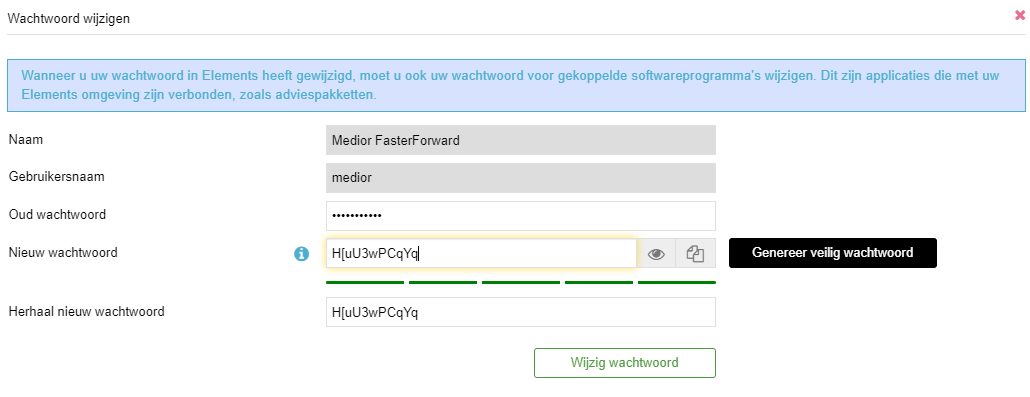
To change your own password, go to "My settings" via the icon in the top right corner. Here, click "Change password." You'll first need to enter your old password. Then, you can have eBlinqxx generate a secure password for you. This way, you'll have a password that's virtually impossible to guess. Changing the password yourself is only possible if you still know your old password. If you don't remember it, the administrator will have to generate a new password.
Unblocking your account by an administrator
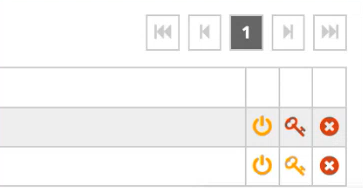
Your account might be blocked because you entered the wrong password or two-factor authentication code repeatedly. Administrators can unblock your account without changing the password. This can be done via Management – User Accounts. Here, find the user account in question. A key appears behind it. If the key is red, the account is blocked. Clicking the red key unblocks the account. The key turns yellow.
Changing Password by Administrator
You can change your password in two different places in eBlinqxx: under the user name or via the User Accounts module – Overview tab. Note: You must have the appropriate permissions for this, and only administrators may use these permissions.
Changing Password via User Accounts
To change the password, go to Management – User Accounts. You will see a key next to the user name.

Clicking this key will open a pop-up window where you can change the password by clicking "Generate Secure Password."
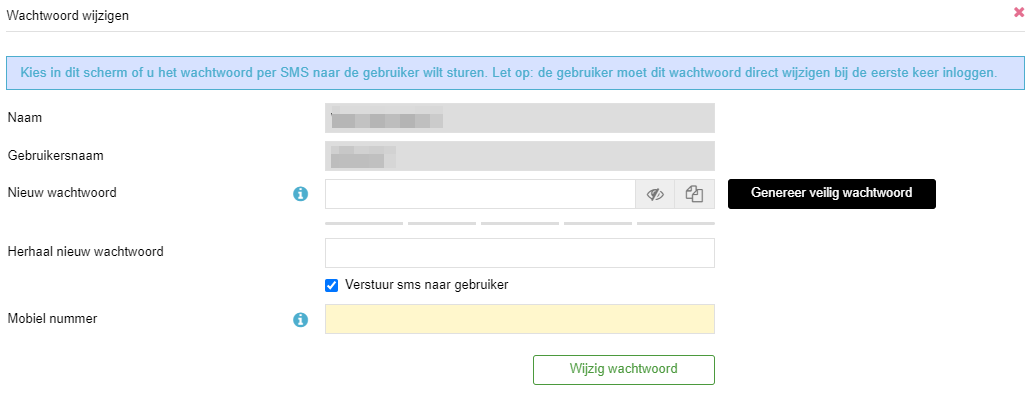
You can then send the user an SMS with the new password. This is more secure because you're using a different communication channel (in addition to eBlinqxx). You can do this by checking "Send SMS to user," entering their mobile number, and then selecting "Change password." The user will be prompted to create a new password immediately after logging in.
Resetting the password automatically unblocks the account if it's blocked and access is denied.
Changing the password under the person
The administrator can change the password under the person as follows:
Go to "Management - Organization & Persons"
Find your colleague under "People" and click on the "Login and system settings" tab. Note: Sometimes a colleague is listed twice in eBlinqxx. You must select the person under which the user account is configured. This can be seen under the "Login and system settings" tab.
Click on "Generate secure password."
You can then send an SMS to the user with the new password. This is more secure because you're using a different communication channel (in addition to eBlinqxx). You can do this by checking "Send SMS to user," entering their mobile number, and then selecting "Change password." The user will be prompted to create a new password immediately after logging in.
If the account is blocked because the user has entered the password or verification code incorrectly multiple times, it will be automatically unblocked when the password is changed.
Resetting two-factor authentication/MFA
Under Management – User accounts – Overview tab, you can also reset two-factor authentication/MFA. This can be done via the phone icon or the clock icon. If two-factor authentication is set up, a phone icon will appear; if it hasn't been activated or has expired, a clock icon will appear.
Gray (clock): two-factor authentication hasn't been activated and hasn't expired.
Red (clock): two-factor authentication hasn't been activated and hasn't expired (for a new account, MFA must be activated within 7 days).
Green (phone): two-factor authentication is activated.

Clicking the icon will reset your password. When you log in again, you'll see a new QR code that you can scan with your authenticator app.
Articles in this section
- My Groveko Webshop
- How to cancel my shipment?
- How do I sign up to get rates?
- Most Frequently Asked Questions IMG
- Overview of Products with Track and Trace
- Reset password and two-factor authentication/MFA
- Understanding the 8 Status Lights for Container Pickup on ePortal
- Understanding Common TAR Code Error Messages on ePortal
- How to Create an Account on ePortal PSA
- How do I reset my password?
Add comment
Please sign in to leave a comment.