
Overview of Products with Track and Trace
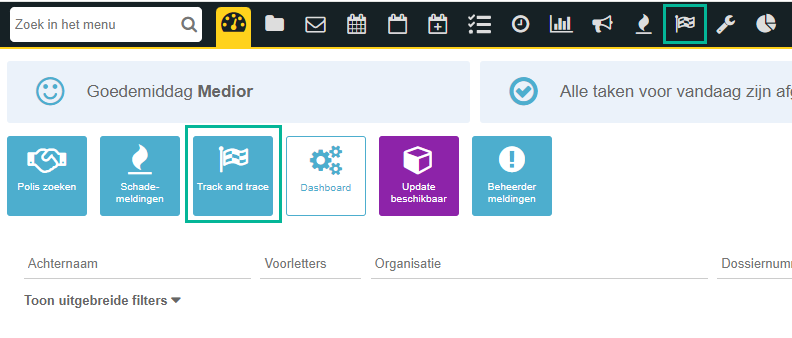
It is nice to have insight into the products and the status of the products within your customer portfolio. In the Track and Trace module, you will find an overview of the files containing products. In this module, you can create various overviews by filtering. To go to Track and Trace, click on the flag icon in the menu or on the dashboard.
Filtering
On the left, you have various filtering options. For example, if you want to know how many services you have running, select the type “Service” in the “Quote” column, then click on “Search.” eBlinqx will then show all ongoing products that are managed in-house of the type “Service.”
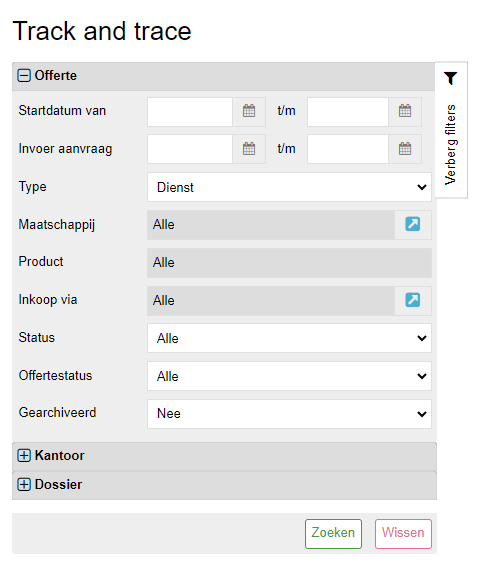
Here you can see the status of the filtered products. It is possible to filter on one specific status or, for example, on a group status.
Exporting to Excel and Printing
All results from the Track and Trace module can be exported to Excel. You then click the “Excel” button, and within Excel, you can edit the data with all the options Excel offers you. Additionally, it is possible to print the results or convert them to a PDF file using the ‘print’ button.

The module offers multiple ways of filtering. This way, you can gain insight into various matters that you can use for your own statistics.
Articles in this section
- My Groveko Webshop
- How to cancel my shipment?
- How do I sign up to get rates?
- Most Frequently Asked Questions IMG
- Overview of Products with Track and Trace
- Reset password and two-factor authentication/MFA
- Understanding the 8 Status Lights for Container Pickup on ePortal
- Understanding Common TAR Code Error Messages on ePortal
- How to Create an Account on ePortal PSA
- How do I reset my password?
Add comment
Please sign in to leave a comment.